Push and pull#
If your n8n instance connects to a Git repository, you need to keep your work in sync with Git.
This document assumes some familiarity with Git concepts and terminology. Refer to Git and n8n for an introduction to how n8n works with Git.
Recommendation: don't push and pull to the same n8n instance
You can push work from an instance to a branch, and pull to the same instance. n8n doesn't recommend this. To reduce the risk of merge conflicts and overwriting work, try to create a process where work goes in one direction: either to Git, or from Git, but not both.
Fetch other people's work#
n8n roles control which users can pull (fetch) changes
You must be an instance owner or instance admin to pull changes from git.
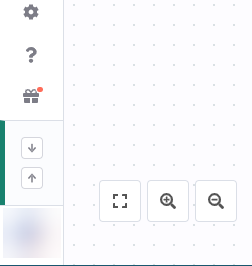
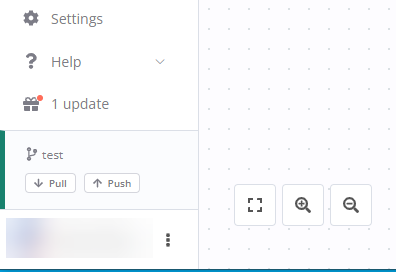
To pull work from Git, select Pull  in the main menu.
View screenshot
n8n may display a warning about overriding local changes. Select Pull and override to override your local work with the content in Git.
When the changes include new variable or credential stubs, n8n notifies you that you need to populate the values for the items before using them.
How deleted resources are handled
When workflows, credentials, variables, tags, and data tables are deleted from the repository, your local versions of these resources aren't deleted automatically. Instead, when you pull repository changes, n8n notifies you about any outdated resources and asks if you'd like to delete them.
Workflow and credential owner may change on pull#
When you pull from Git to an n8n instance, n8n tries to assign workflows and credentials to a matching user or project.
If the original owner is a user:
If the same owner is available on both instances (matching email), the owner remains the same. If the original owner isn't on the new instance, n8n sets the user performing the pull as the workflow owner.
If the original owner is a project:
n8n tries to match the original project name to a project name on the new instance. If no matching project exists, n8n creates a new project with the name, assigns the current user as project owner, and imports the workflows and credentials to the project.
Auto publish workflows on pull#
When pulling, you can choose to automatically publish workflows using the Auto publish dropdown in the pull modal. This has three modes:
- Off (default): Don't attempt to publish any workflows. Workflows keep their current local publish state.
- If workflow already published: Only attempt to publish workflows that are already published on this instance. New workflows aren't published.
- On: Attempt to publish all pulled workflows, including new ones.
n8n never auto publishes archived workflows, regardless of the auto publish setting.
After a pull with auto publish enabled, n8n displays a results modal showing which workflows were successfully published and which failed. Publishing can fail if a workflow has validation errors or missing credentials.
Auto publish is also available through the API using the autoPublish parameter on the pull endpoint, with values none, published, or all.
Pulling may cause brief service interruption#
If you pull changes to a published workflow, n8n unpublishes the workflow while pulling, then republishes it. This may result in a few seconds of downtime for the workflow.
Send your work to Git#
n8n roles control which users can push changes
You must be an instance owner, instance admin, or project admin to push changes to git.
To push work to Git:
-
Select Push
 in the main menu.
View screenshot
Pull and push buttons when menu is closed
Pull and push buttons when menu is open -
In the Commit and push changes modal, select which workflows and data tables you want to push. You can filter by status (new, modified, deleted) and search for items. n8n automatically pushes tags, and variable and credential stubs.
n8n pushes the current saved version, not the published version, of the workflow. You need to then separately publish versions on the remote server.
- Enter a commit message. This should be a one sentence description of the changes you're making.
- Select Commit and Push. n8n sends the work to Git, and displays a success message on completion.
What gets committed#
n8n commits the following to Git:
- Workflows, including their tags and the email address of the workflow owner. You can choose which workflows to push.
- Credential stubs - ID, name and type. Any other fields are included only if they are expressions. You can choose which credentials to push.
- Variable stubs (ID and name)
- Data table schemas (table name and column definitions, not row data). You can choose which data tables to push.
- Projects
- Folders
Merge behaviors and conflicts#
n8n's implementation of source control is opinionated. It resolves merge conflicts for credentials and variables automatically. n8n can't detect conflicts on workflows.
Workflows#
You have to explicitly tell n8n what to do about workflows when pushing or pulling. The Git repository acts as the source of truth.
When pulling, you might get warned that your local copy of a workflow differs from Git, and if you accept, your local copy would be overridden. Be careful not to lose relevant changes when pulling.
When you push, your local workflow will override what's in Git, so make sure that you have the most up to date version or you risk overriding recent changes.
To prevent the issue described above, you should immediately push your changes to a workflow once you finish working on it. Then it's safe to pull.
To avoid losing data:
- Design your source control setup so that workflows flow in one direction. For example, make edits on a development instance, push to Git, then pull to production. Don't make edits on the production instance and push them.
- Don't push all workflows. Select the ones you need.
- Be cautious about manually editing files in the Git repository.
Credentials, variables and workflow tags#
Credentials and variables can't have merge issues, as n8n chooses the version to keep.
On pull:
- If the tag, variable or credential doesn't exist, n8n creates it.
- If the tag, variable or credential already exists, n8n doesn't update it, unless:
- You set the value of a variable using the API or externally. The new value overwrites any existing value.
- The credential name has changed. n8n uses the version in Git.
- The name of a tag has changed. n8n updates the tag name. Be careful when renaming tags as tag names are unique and this could cause database issues when it comes to uniqueness during the pull process.
On push:
- n8n overwrites the entire variables and tags files.
- If a credential already exists, n8n overwrites it with the changes, but doesn't apply these changes to existing credentials on pull.
Data tables#
n8n syncs data table schemas (table structure and column definitions) across environments. Row data isn't synced.
On push:
- You can select which data tables to include.
- n8n exports the table name, column names, column types, and column order.
On pull:
- n8n creates new data tables that don't exist locally.
- For existing data tables, n8n updates the schema to match the version in Git. This includes adding new columns and removing columns that no longer exist in the remote version.
Column removal causes data loss
If a pulled data table has columns removed compared to your local version, n8n deletes those columns and their data. This can't be undone. n8n displays a warning in the pull modal when this will happen.
Manage credentials with an external secrets vault
If you need different credentials on different n8n environments, use external secrets.